Edit issue fields as the agent
Update any editable field on the issue and have the change attributed to the configured agent.
Open the Edit Issue tab
In the Act as Agent modal, switch to the Edit Issue tab.
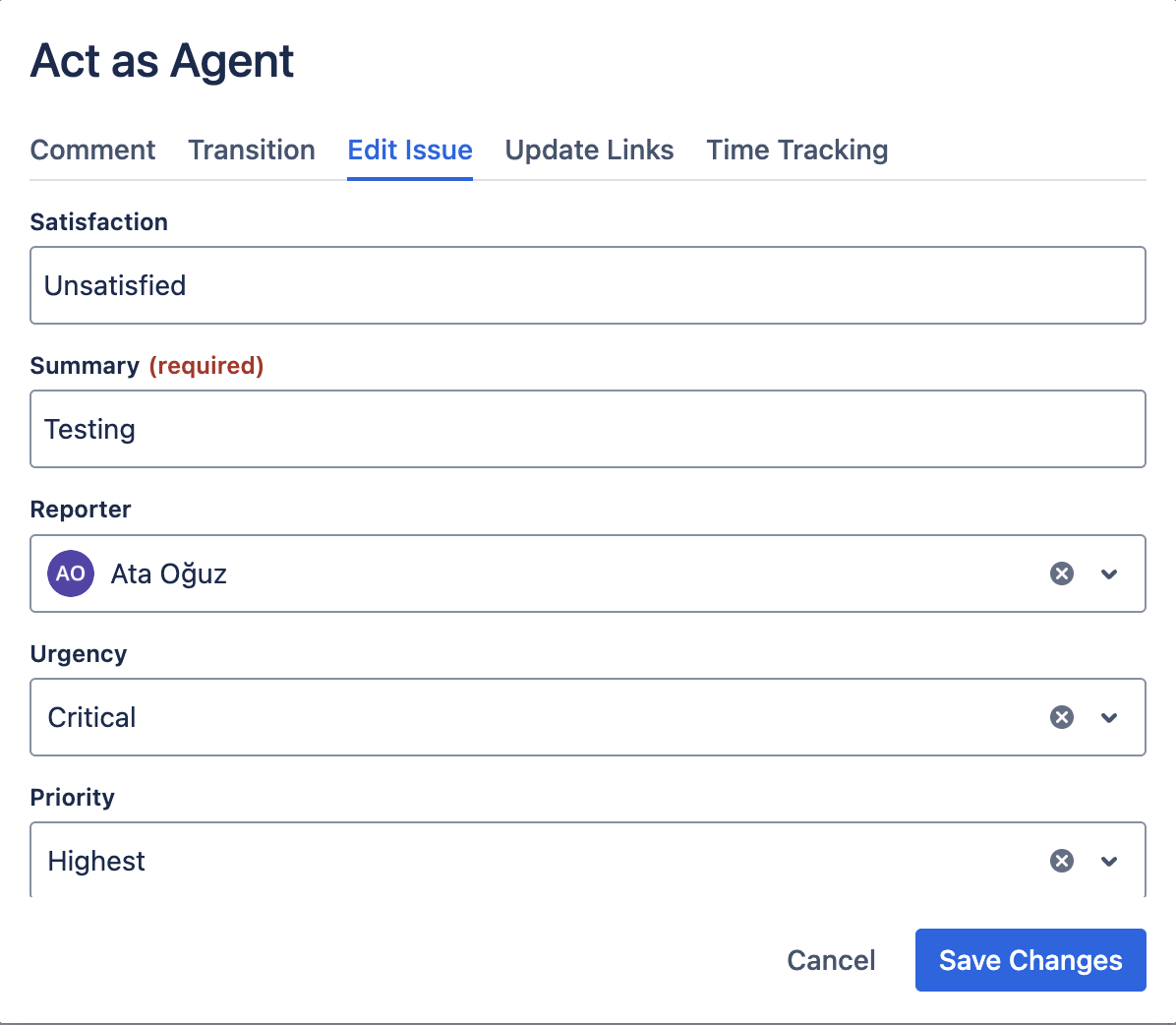
The tab loads every field the issue's edit screen exposes. Jira's standard edit metadata governs what appears. Read-only fields and fields you lack permission to edit are not shown. If the issue has no editable fields, you'll see No editable fields available for this issue.
Field types supported
Proxy Agent renders the right control for each field type, including:
| Field type | Control |
|---|---|
| Text (single- and multi-line) | Text field |
| Number | Numeric input |
| Date | Date picker |
| Date and time | Date-time picker |
| Single-select / radio | Dropdown |
| Multi-select | Multi-select picker |
| Labels | Multi-select with create; type to add a new label |
| User (single and multi) | Searchable user picker with avatars |
| Group (single and multi) | Group picker |
| Team | Atlaskit team picker |
| Organization (JSM) | Organization picker |
| Version (single and multi) | Version picker with release-status badges |
| Rich-text / description | Full ADF editor |
Service-entity custom fields, attachments, time tracking, and issue links have their own tabs in the modal (or are not editable here) and are excluded from this form.
Save
Click Save Changes. The modal closes and the issue refreshes. A toast confirms success.