Add a comment as the agent
Reply to a customer or add an internal note, attributed to the configured agent.
Open the modal
On any service desk issue you have permission for, open the issue's overflow menu and click Act as Agent.
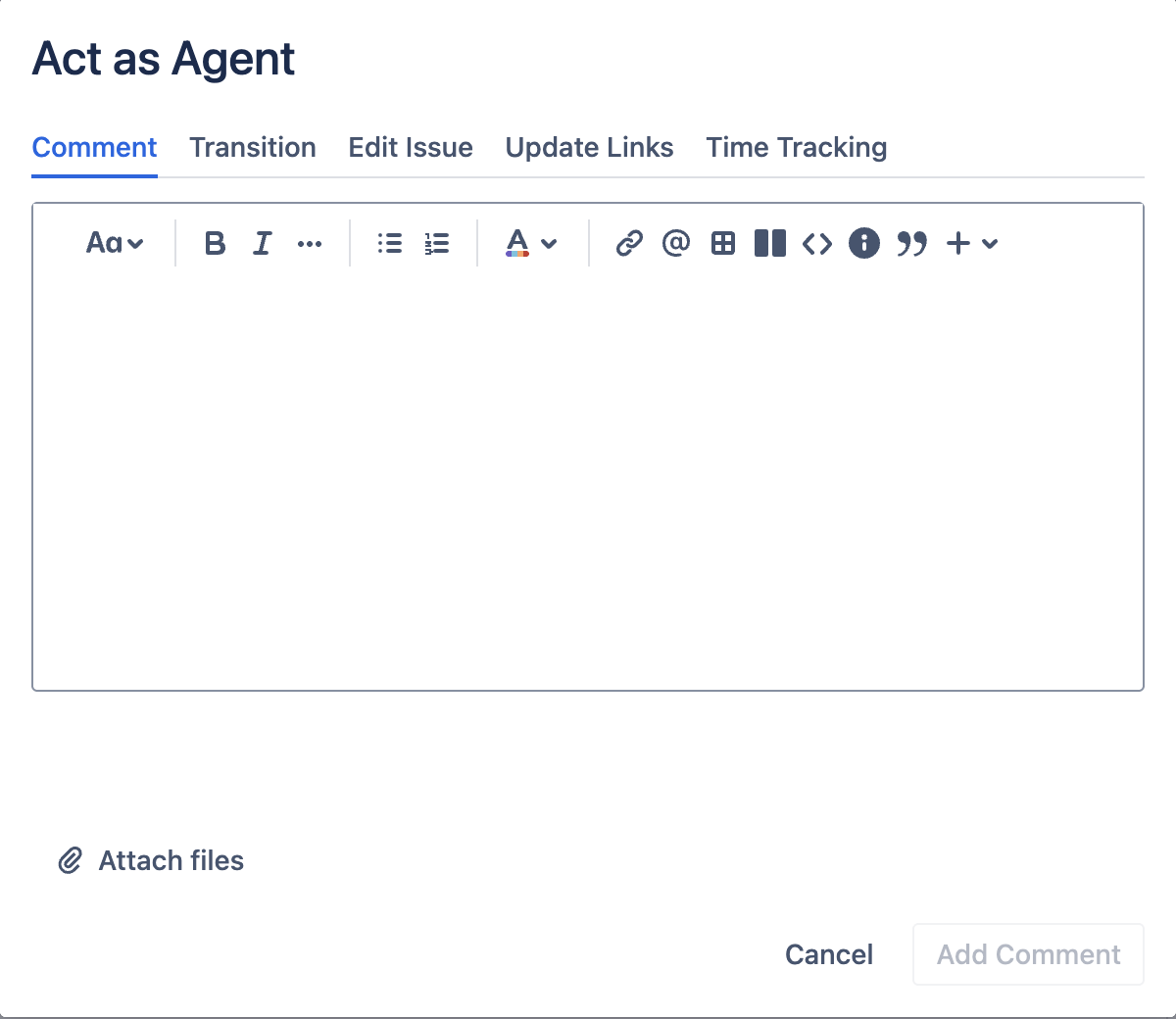
The modal opens to the Comment tab by default.
Write the comment
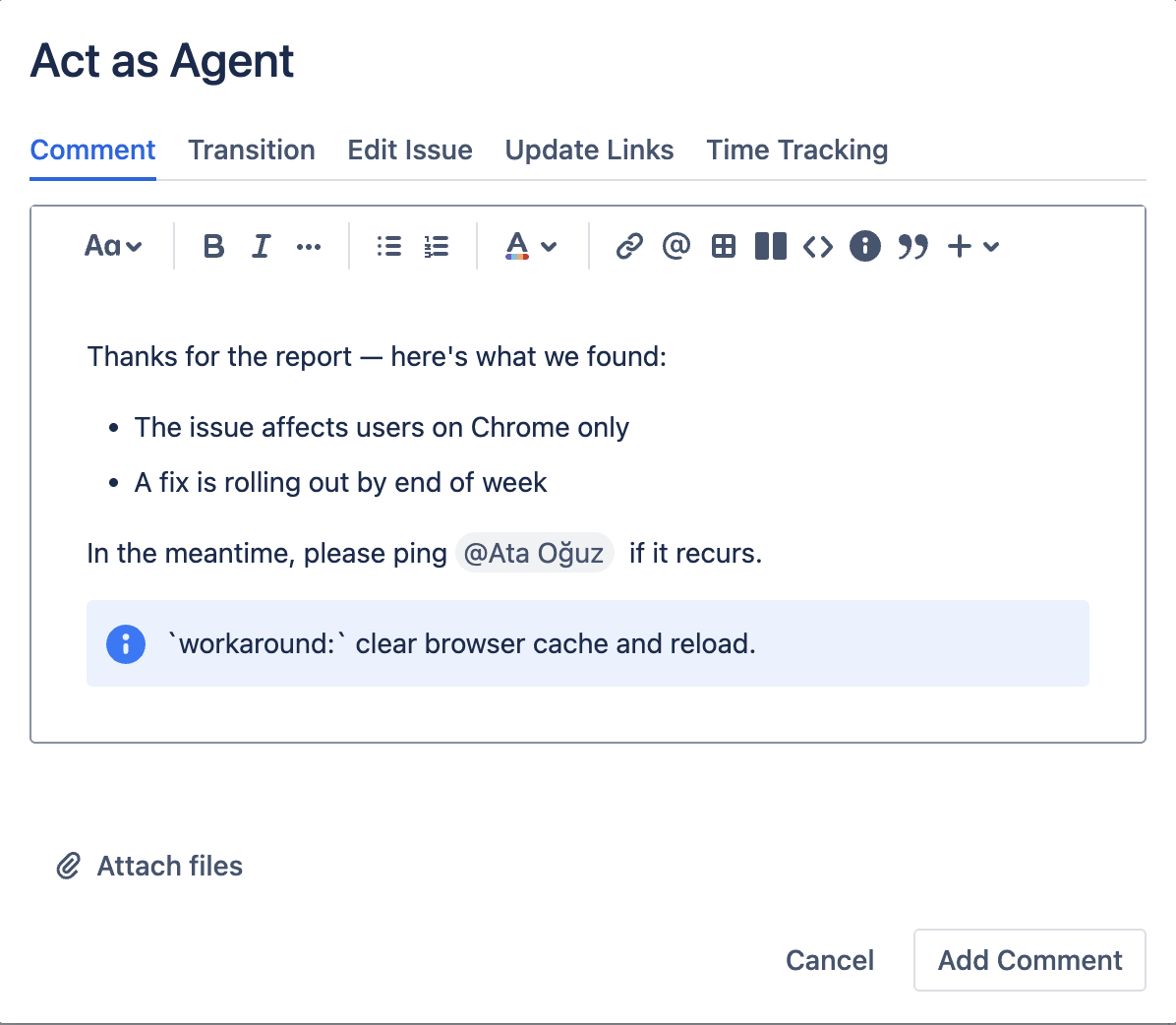
The editor is a full Atlassian rich-text editor:
- Bold, italic, underline, strikethrough.
- Headings, code blocks, blockquotes, info / warning / note / error panels.
- Bullet and numbered lists, tables, links.
@mentionsof Jira users,:emoji:, date inserts, layouts.- Copy-as-Markdown.
Attach files
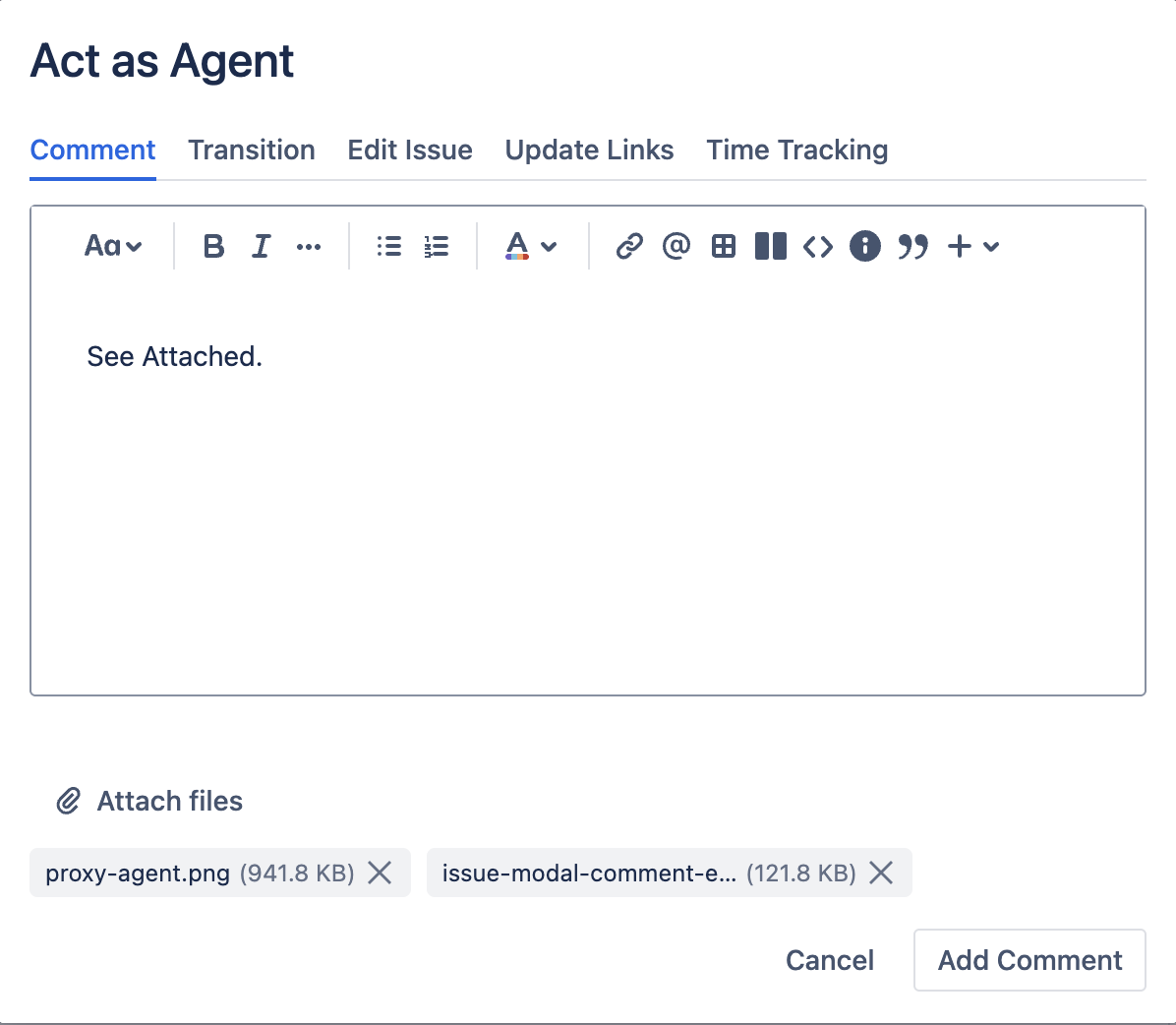
Click the attachment button next to the editor to attach files.
- Up to 10 files per comment.
- Each file up to 10 MB.
- File names are inserted into the comment body as a comma-separated list so customers see what was attached.
Files outside the size or count limits are silently skipped. Re-attach them in smaller batches.
Submit
Click Add Comment. The modal closes and the issue view refreshes. A toast confirms the comment was added.
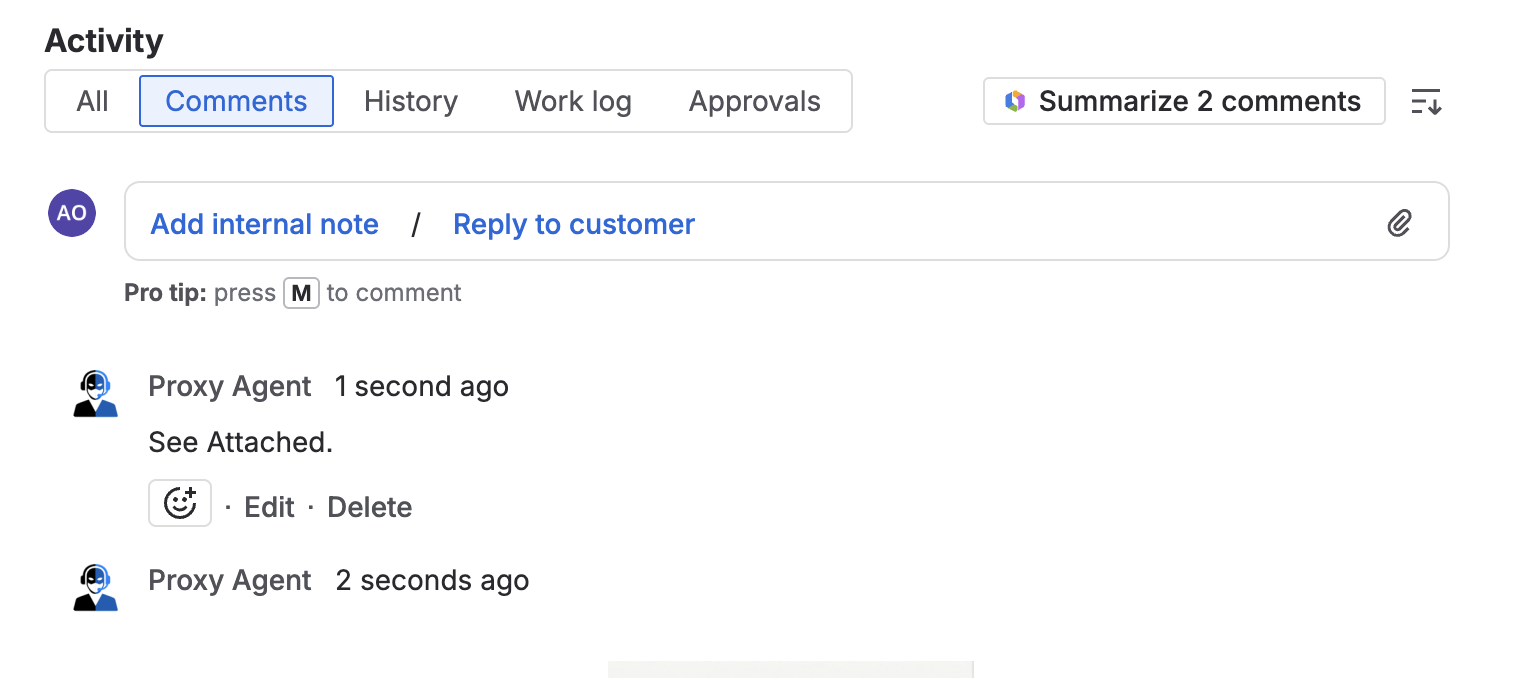
What the customer sees
The comment appears under the configured agent's display name and avatar, not yours. The audit log will still record that you triggered the action.